[iOS] Integrate with the App Store
Integrate your iOS app with Monetai to start tracking App Store revenue in real-time.
Getting Started
You can start the integration process in two ways:
- Method 1: From the Dashboard Onboarding
- Go to the Monetai Dashboard.
- Begin the app integration setup in the onboarding section at the top of the page.
- Method 2: From the Settings Menu
- Go to Settings > App Settings
- Begin the app integration setup.
Integration Process
The entire process takes about 5 minutes to complete over 3 simple steps.
1. Input App Information
First, you'll need to retrieve some basic information for your app from App Store Connect.
Required Information
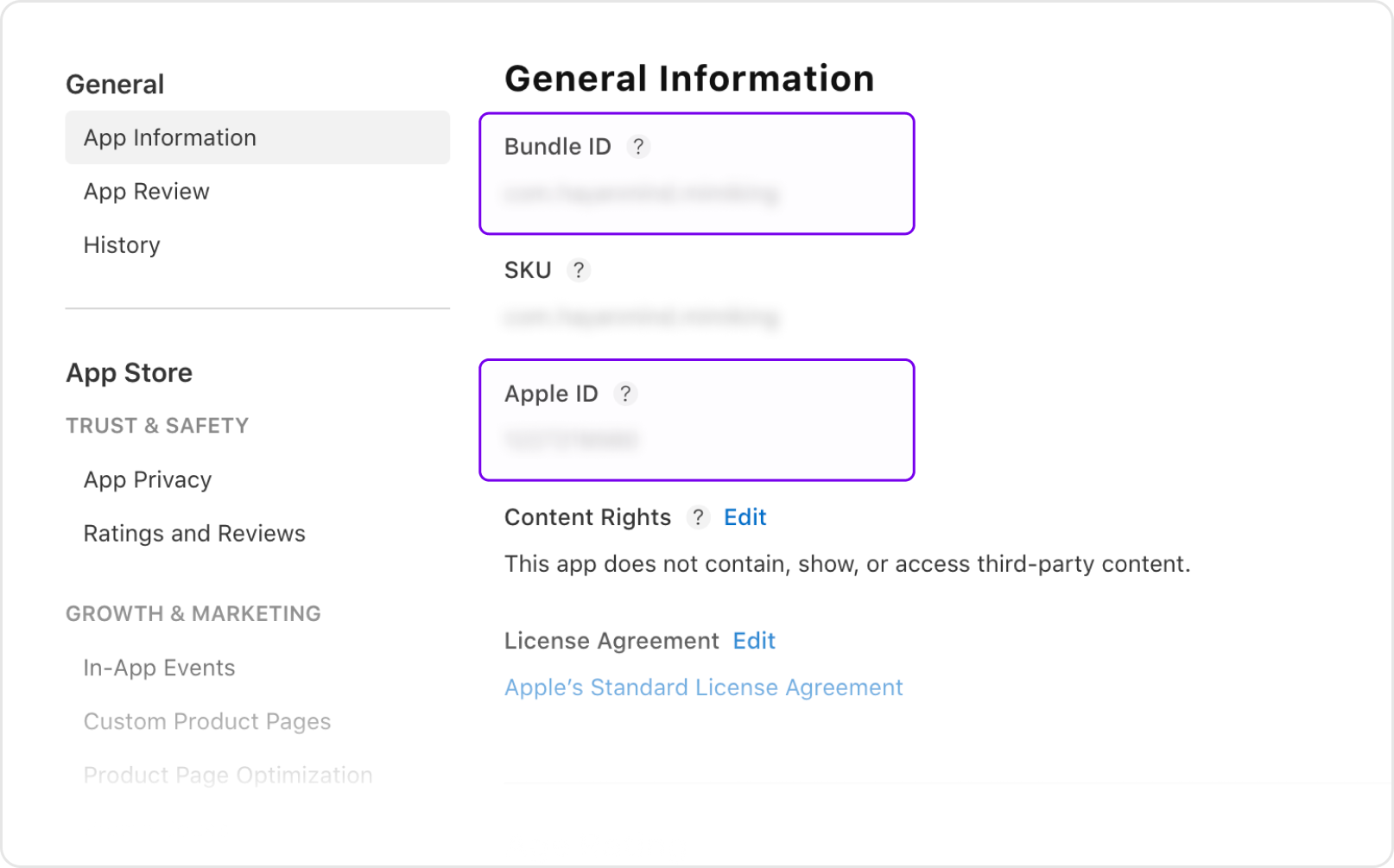
- Bundle ID: Unique identifier for the app
- Apple ID: App ID from App Store Connect
How to find them
- Log in to App Store Connect
- Navigate to [Apps] and select the app to connect with Monetai
- Select [General Information] > [App Information] from the left menu
- Copy the [Bundle ID] and [Apple ID] and enter them in the Monetai Dashboard
2. App Shared Secret Setup
Next, set up authentication information for App Store Server Notifications.
How to Set It Up
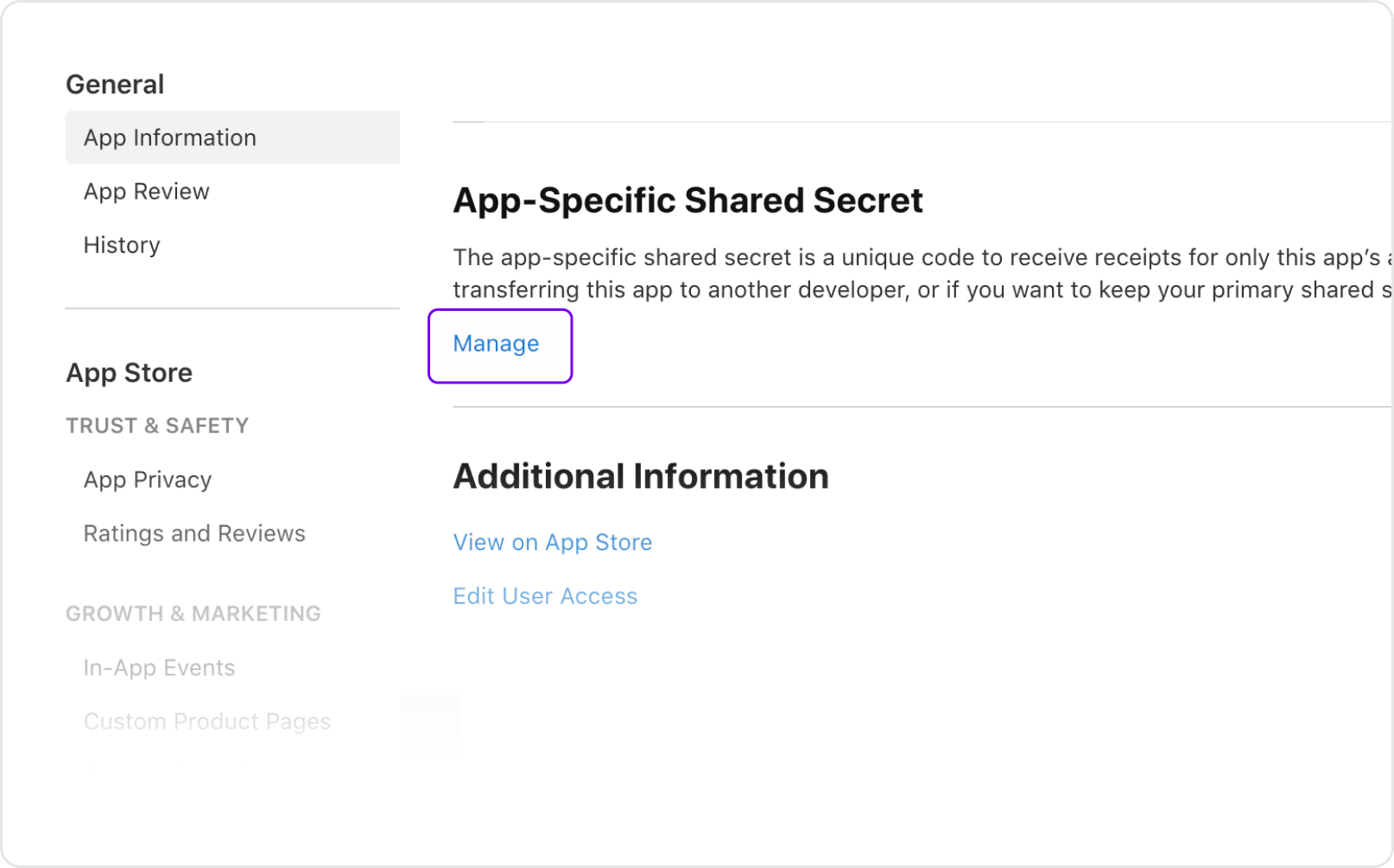
- Select [Manage] in the [App Shared Secret] section of [App Information]
- Copy the [Shared Secret]
- Enter it in the Monetai Dashboard
Important: Your App-Specific Shared Secret is a sensitive credential used to verify server notifications. Please ensure it is stored securely.
3. Register the Server Notification URL
Finally, set the destination URL for real-time purchase information from the App Store.
Setup Method
- Copy the Apple Server Notification URL provided by the Monetai dashboard
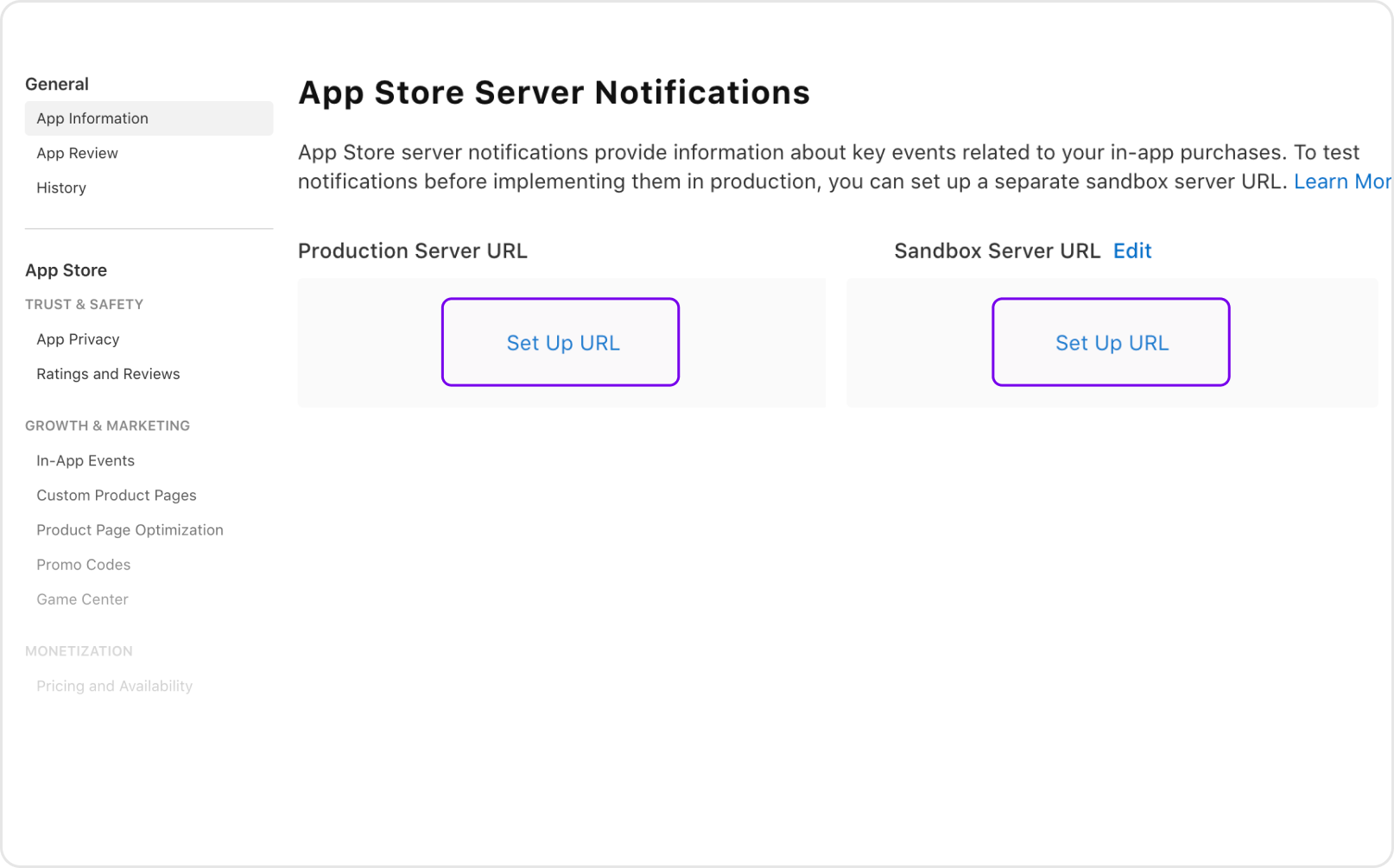
- Navigate to [App Information] > [App Store Server Notifications] in App Store Connect
- Enter the copied URL in both of the following fields:
- Production Server URL
- Sandbox Server URL
- Set Notification Version to Version 2 notifications
💡 Using a third-party service (e.g., RevenueCat, Adapty)?
If your App Store Server Notifications URL is already registered with a third-party service, use its Server Notification Forwarding feature to send real-time purchase data to Monetai. See your provider’s documentation for details.
- RevenueCat documentation: Paste the Monetai URL from Step 1 into the Apple Server Notification Forwarding URL field.
- Adapty documentation: Paste the Monetai URL from Step 1 into the URL for forwarding raw Apple events field.
What We Track
Once integrated, Monetai tracks the following key events in real-time via App Store Server Notifications V2:
Subscription Related
- Free trial start
- Paid subscription start
- Paid subscription renewal
- Refunds
Verifying the Integration
After completing the setup, you can confirm everything is working correctly by checking for incoming notifications. Verify that Monetai is receiving purchase events from your app in real-time.
Troubleshooting
Common Issues
- Q: I can't find the Bundle ID.
- A: In App Store Connect, select your app, then find it under [General Information] > [App Information] in the left menu.
- Q: The App-Specific Shared Secret isn't displayed.
- A: This requires Admin permissions for the app in App Store Connect. Please check your role and permissions.
- Q: Server notifications are not being received.
- A: Please double-check that the URL is entered correctly and that both the Production and Sandbox URLs are set.
Support
If you run into any trouble during the integration, don't hesitate to contact us at support@monetai.io.
Next Steps
With iOS integration complete, you're ready for the next steps: